

 This page shows you how to integrate Grafana with a and make insights based on visualization of
data optimized for size and speed in the .
This page shows you how to integrate Grafana with a and make insights based on visualization of
data optimized for size and speed in the .
Prerequisites
To follow the steps on this page:- Create a target with the Real-time analytics capability enabled. You need your connection details. This procedure also works for .
- Install and run self-managed Grafana, or sign up for Grafana Cloud.
Optimize time-series data in hypertables
s are tables in that automatically partition your time-series data by time. Time-series data represents the way a system, process, or behavior changes over time. s enable to work efficiently with time-series data. Each is made up of child tables called chunks. Each chunk is assigned a range of time, and only contains data from that range. When you run a query, identifies the correct chunk and runs the query on it, instead of going through the entire table. is the hybrid row-columnar storage engine in used by . Traditional databases force a trade-off between fast inserts (row-based storage) and efficient analytics (columnar storage). eliminates this trade-off, allowing real-time analytics without sacrificing transactional capabilities. dynamically stores data in the most efficient format for its lifecycle:- Row-based storage for recent data: the most recent chunk (and possibly more) is always stored in the , ensuring fast inserts, updates, and low-latency single record queries. Additionally, row-based storage is used as a writethrough for inserts and updates to columnar storage.
- Columnar storage for analytical performance: chunks are automatically compressed into the , optimizing storage efficiency and accelerating analytical queries.
-
Import time-series data into a
-
Unzip metrics.csv.gz to a
<local folder>. This test dataset contains energy consumption data. To import up to 100GB of data directly from your current based database, migrate with downtime using native tooling. To seamlessly import 100GB-10TB+ of data, use the live migration tooling supplied by . To add data from non- data sources, see Import and ingest data. -
In Terminal, navigate to
<local folder>and update the following string with your connection details to connect to your . -
Create an optimized for your time-series data:
-
Create a with enabled by default for your
time-series data using CREATE TABLE. For efficient queries
on data in the , remember to
segmentbythe column you will use most often to filter your data. In your sql client, run the following command:If you are self-hosting v2.19.3 and below, create a relational table, then convert it using create_hypertable. You then enable with a call to ALTER TABLE.
-
Create a with enabled by default for your
time-series data using CREATE TABLE. For efficient queries
on data in the , remember to
-
Upload the dataset to your
-
Unzip metrics.csv.gz to a
-
Have a quick look at your data
You query s in exactly the same way as you would a relational table.
Use one of the following SQL editors to run a query and see the data you uploaded:
- Data mode: write queries, visualize data, and share your results in for all your s.
- SQL editor: write, fix, and organize SQL faster and more accurately in for a .
- psql: easily run queries on your s or deployment from Terminal.
On this amount of data, this query on data in the takes about 3.6 seconds. You see something like:Time value 2023-05-29 22:00:00+00 23.1 2023-05-28 22:00:00+00 19.5 2023-05-30 22:00:00+00 25 2023-05-31 22:00:00+00 8.1
Optimize your data for real-time analytics
When converts a chunk to the , it automatically creates a different schema for your data. creates and uses custom indexes to incorporate thesegmentby and orderby parameters when
you write to and read from the .
To increase the speed of your analytical queries by a factor of 10 and reduce storage costs by up to 90%, convert data
to the :
- Connect to your In open an SQL editor. The in-Console editors display the query speed. You can also connect to your using psql.
-
Add a policy to convert chunks to the at a specific time interval
For example, 60 days after the data was added to the table:
See add_columnstore_policy.
-
Faster analytical queries on data in the
Now run the analytical query again:
On this amount of data, this analytical query on data in the takes about 250ms.
Write fast analytical queries
Aggregation is a way of combining data to get insights from it. Average, sum, and count are all examples of simple aggregates. However, with large amounts of data aggregation slows things down, quickly. s are a kind of that is refreshed automatically in the background as new data is added, or old data is modified. Changes to your dataset are tracked, and the behind the is automatically updated in the background. By default, querying s provides you with real-time data. Pre-aggregated data from the materialized view is combined with recent data that hasn’t been aggregated yet. This gives you up-to-date results on every query. You create s on uncompressed data in high-performance storage. They continue to work on data in the and rarely accessed data in tiered storage. You can even create s on top of your s.-
Monitor energy consumption on a day-to-day basis
-
Create a continuous aggregate
kwh_day_by_dayfor energy consumption: -
Add a refresh policy to keep
kwh_day_by_dayup-to-date:
-
Create a continuous aggregate
-
Monitor energy consumption on an hourly basis
-
Create a continuous aggregate
kwh_hour_by_hourfor energy consumption: -
Add a refresh policy to keep the continuous aggregate up-to-date:
-
Create a continuous aggregate
-
Analyze your data
Now you have made continuous aggregates, it could be a good idea to use them to perform analytics on your data.
For example, to see how average energy consumption changes during weekdays over the last year, run the following query:
You see something like:
day ordinal value Mon 2 23.08078714975423 Sun 1 19.511430831944395 Tue 3 25.003118897837307 Wed 4 8.09300571759772
Connect Grafana to Tiger Cloud
To visualize the results of your queries, enable Grafana to read the data in your :-
Log in to Grafana
In your browser, log in to either:
- Self-hosted Grafana: at
http://localhost:3000/. The default credentials areadmin,admin. - Grafana Cloud: use the URL and credentials you set when you created your account.
- Self-hosted Grafana: at
-
Add your as a data source
-
Open
Connections>Data sources, then clickAdd new data source. -
Select
PostgreSQLfrom the list. -
Configure the connection:
-
Host URL,Database name,Username, andPasswordConfigure using your connection details.Host URLis in the format<host>:<port>. -
TLS/SSL Mode: selectrequire. -
PostgreSQL options: enableTimescaleDB. - Leave the default setting for all other fields.
-
-
Click
Save & test.
-
Open
Visualize energy consumption
A Grafana dashboard represents a view into the performance of a system, and each dashboard consists of one or more panels, which represent information about a specific metric related to that system. To visually monitor the volume of energy consumption over time:-
Create the dashboard
-
On the
Dashboardspage, clickNewand selectNew dashboard. -
Click
Add visualization, then select the data source that connects to your and theBar chartvisualization.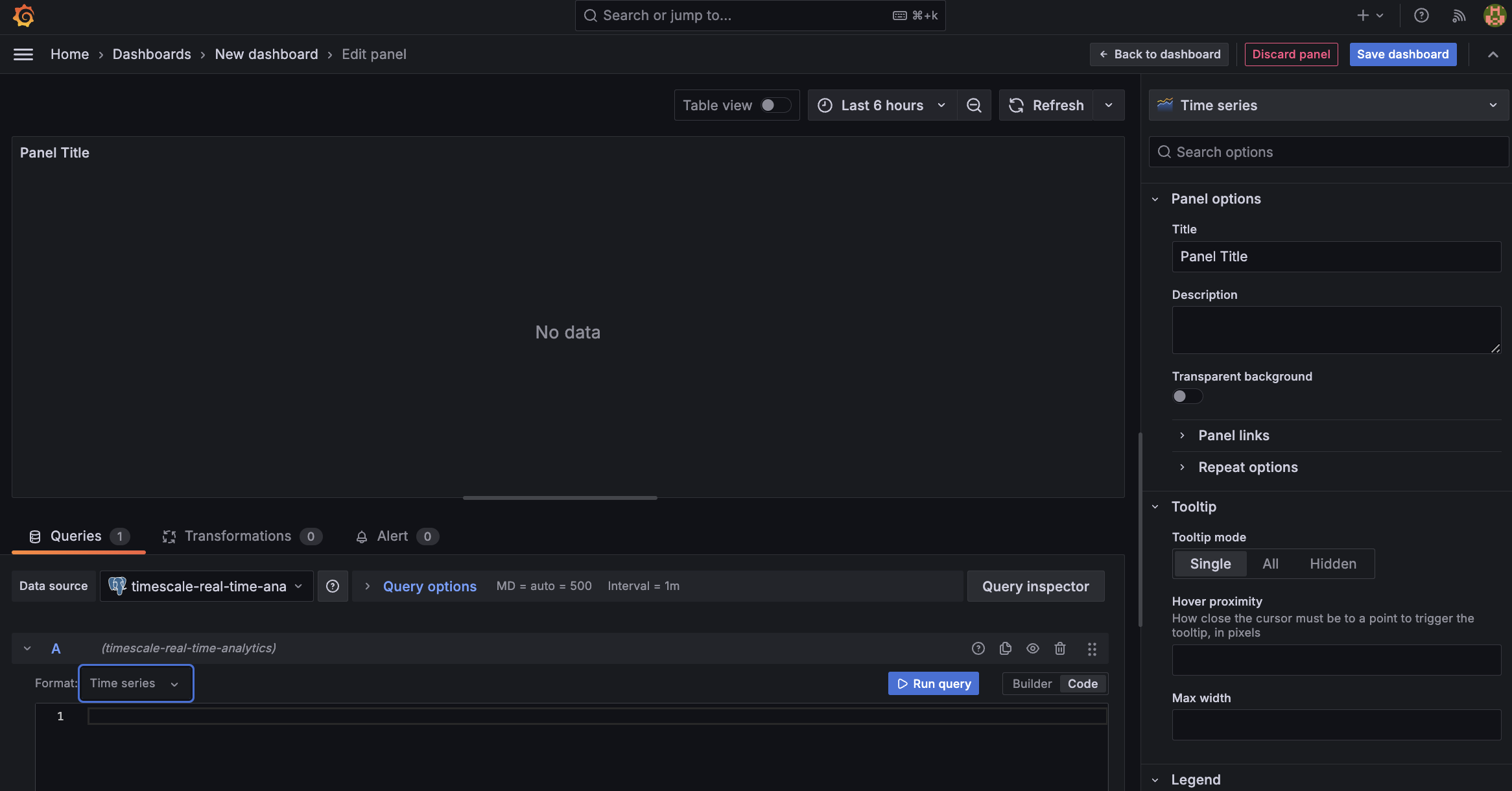
-
In the
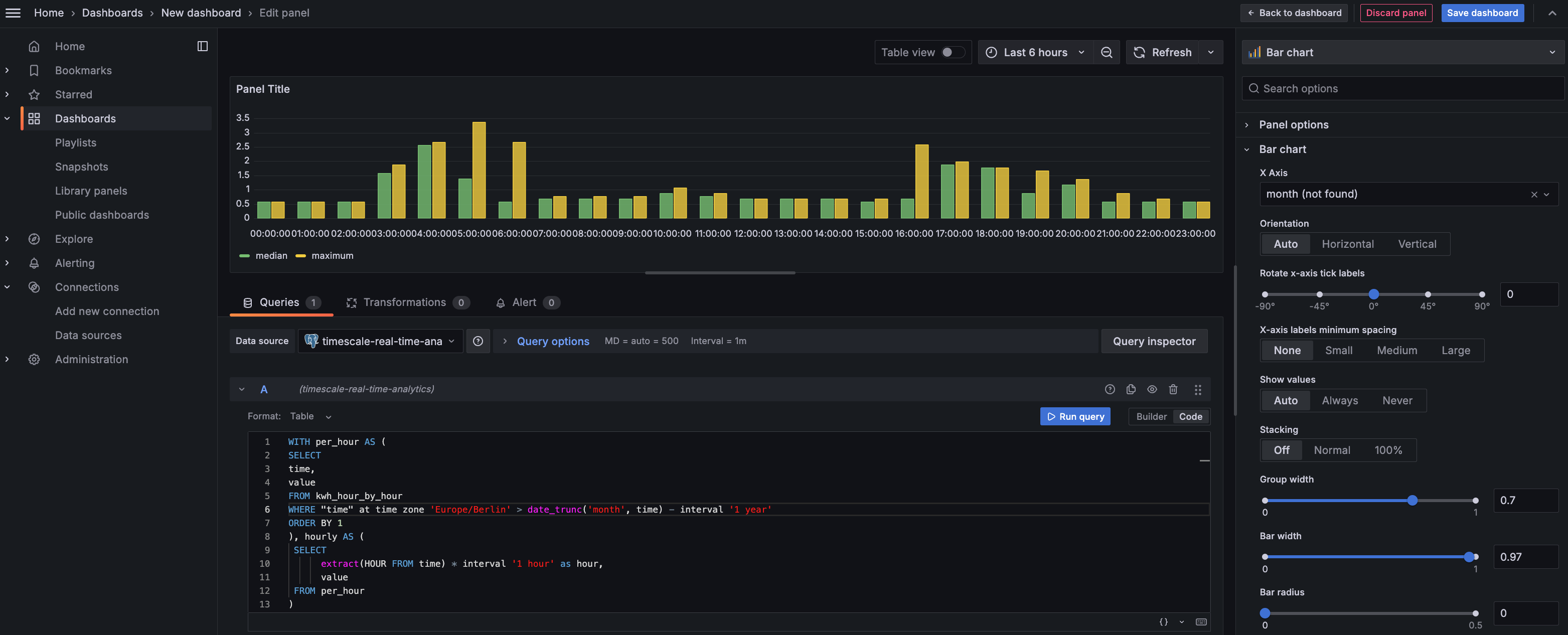
Queriessection, selectCode, then run the following query based on your :This query averages the results for households in a specific time zone by hour and orders them by time. Because you use a , this data is always correct in real time.
You see that energy consumption is highest in the evening and at breakfast time. You also know that the wind
drops off in the evening. This data proves that you need to supply a supplementary power source for peak times,
or plan to store energy during the day for peak times.
-
On the
-
Click
Save dashboard