

 The leverages the well-established logical replication protocol. By relying on this protocol,
it ensures compatibility, familiarity, and a broader knowledge base—making it easier for you to adopt the connector
and integrate your data.
You use the for data synchronization, rather than migration. This includes:
The leverages the well-established logical replication protocol. By relying on this protocol,
it ensures compatibility, familiarity, and a broader knowledge base—making it easier for you to adopt the connector
and integrate your data.
You use the for data synchronization, rather than migration. This includes:
-
Copy existing data from a instance:
- Copy data at up to 150 GB/hr. You need at least a 4 CPU/16 GB source database, and a 4 CPU/16 GB target .
- Copy the publication tables in parallel. Large tables are still copied using a single connection. Parallel copying is in the backlog.
-
Forget foreign key relationships.
The connector disables foreign key validation during the sync. For example, if a
metricstable refers to theidcolumn on thetagstable, you can still sync only themetricstable without worrying about their foreign key relationships. -
Track progress.
exposes
COPYprogress underpg_stat_progress_copy.
- Synchronize real-time changes from a instance.
- Add and remove tables on demand using the PUBLICATION interface.
- Enable features such as hypertables, columnstore, and continuous aggregates on your logical replica.
This source Postgres connector is not yet supported for production use. If you have any questions or feedback, talk to us in #livesync in the Tiger Community.
- Tiger Cloud Console
- Self-hosted Postgres connector
Prerequisites
To follow the steps on this page:- Create a target with real-time analytics enabled. You need your connection details.
- Install the client tools on your sync machine.
- Ensure that the source instance and the target have the same extensions installed. The does not create extensions on the target. If the table uses column types from an extension, first create the extension on the target before syncing the table.
Limitations
- The source instance must be accessible from the Internet. Services hosted behind a firewall or VPC are not supported. This functionality is on the roadmap.
- Indexes, including the primary key and unique constraints, are not migrated to the target. We recommend that, depending on your query patterns, you create only the necessary indexes on the target.
- This works for databases only as source. is not yet supported.
- The source must be running 13 or later.
- Schema changes must be co-ordinated. Make compatible changes to the schema in your first, then make the same changes to the source instance.
- Ensure that the source instance and the target have the same extensions installed. The does not create extensions on the target. If the table uses column types from an extension, first create the extension on the target before syncing the table.
- There is WAL volume growth on the source instance during large table copy.
-
Continuous aggregate invalidation
The connector uses
session_replication_role=replicaduring data replication, which prevents table triggers from firing. This includes the internal triggers that mark continuous aggregates as invalid when underlying data changes. If you have continuous aggregates on your target database, they do not automatically refresh for data inserted during the migration. This limitation only applies to data below the continuous aggregate’s materialization watermark. For example, backfilled data. New rows synced above the continuous aggregate watermark are used correctly when refreshing. This can lead to:- Missing data in continuous aggregates for the migration period.
- Stale aggregate data.
- Queries returning incomplete results.
forceoption of refresh_continuous_aggregate.
Set your connection string
This variable holds the connection information for the source database. In the terminal on your migration machine, set the following:Tune your source database
- From AWS RDS/Aurora
- From Postgres
-
Set the
rds.logical_replicationparameter to1In the AWS console, navigate to your RDS instance parameter group and setrds.logical_replicationto1. This enables logical replication on the RDS instance. After changing this parameter, restart your RDS instance for the changes to take effect. -
Create a user for the connector and assign permissions
-
Create
<pg connector username>:You can use an existing user. However, you must ensure that the user has the following permissions. -
Grant permissions to create a replication slot:
-
Grant permissions to create a publication:
-
Assign the user permissions on the source database:
If the tables you are syncing are not in the
publicschema, grant the user permissions for each schema you are syncing: -
On each table you want to sync, make
<pg connector username>the owner:You can skip this step if the replicating user is already the owner of the tables.
-
Create
-
Enable replication
DELETEandUPDATEoperations For the connector to replicateDELETEandUPDATEoperations, enableREPLICA IDENTITYon each table:
Synchronize data
To sync data from your database using :- Connect to your In , select the to sync live data to.
-
Connect the source database and the target
- Click
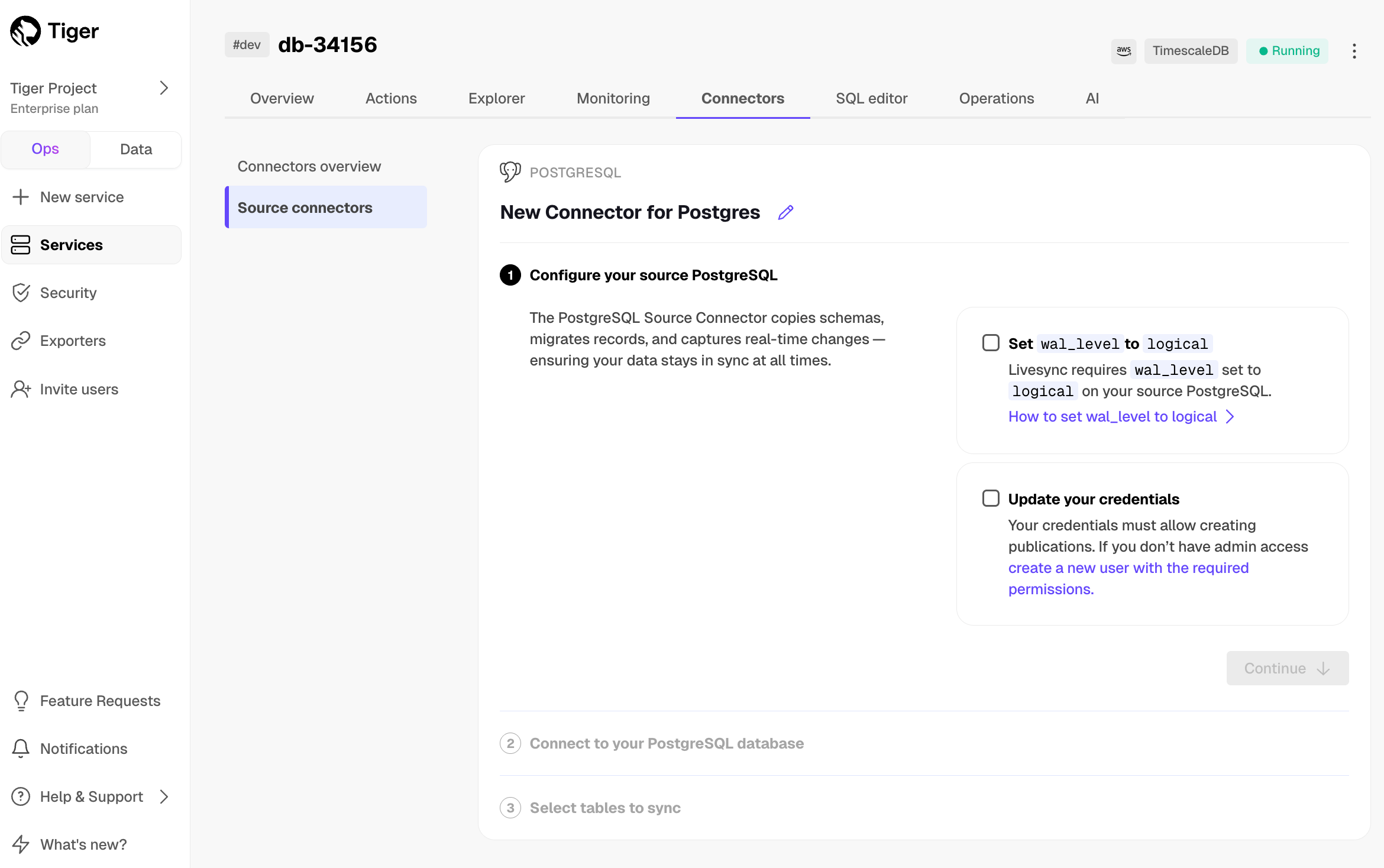
Connectors>PostgreSQL. - Set the name for the new connector by clicking the pencil icon.
- Check the boxes for
Set wal_level to logicalandUpdate your credentials, then clickContinue. - Enter your database credentials or a connection string, then click
Connect to database. This is the connection string for<pg connector username>. The console connects to the source database and retrieves the schema information.
- Click
-
Optimize the data to synchronize in hypertables
-
In the
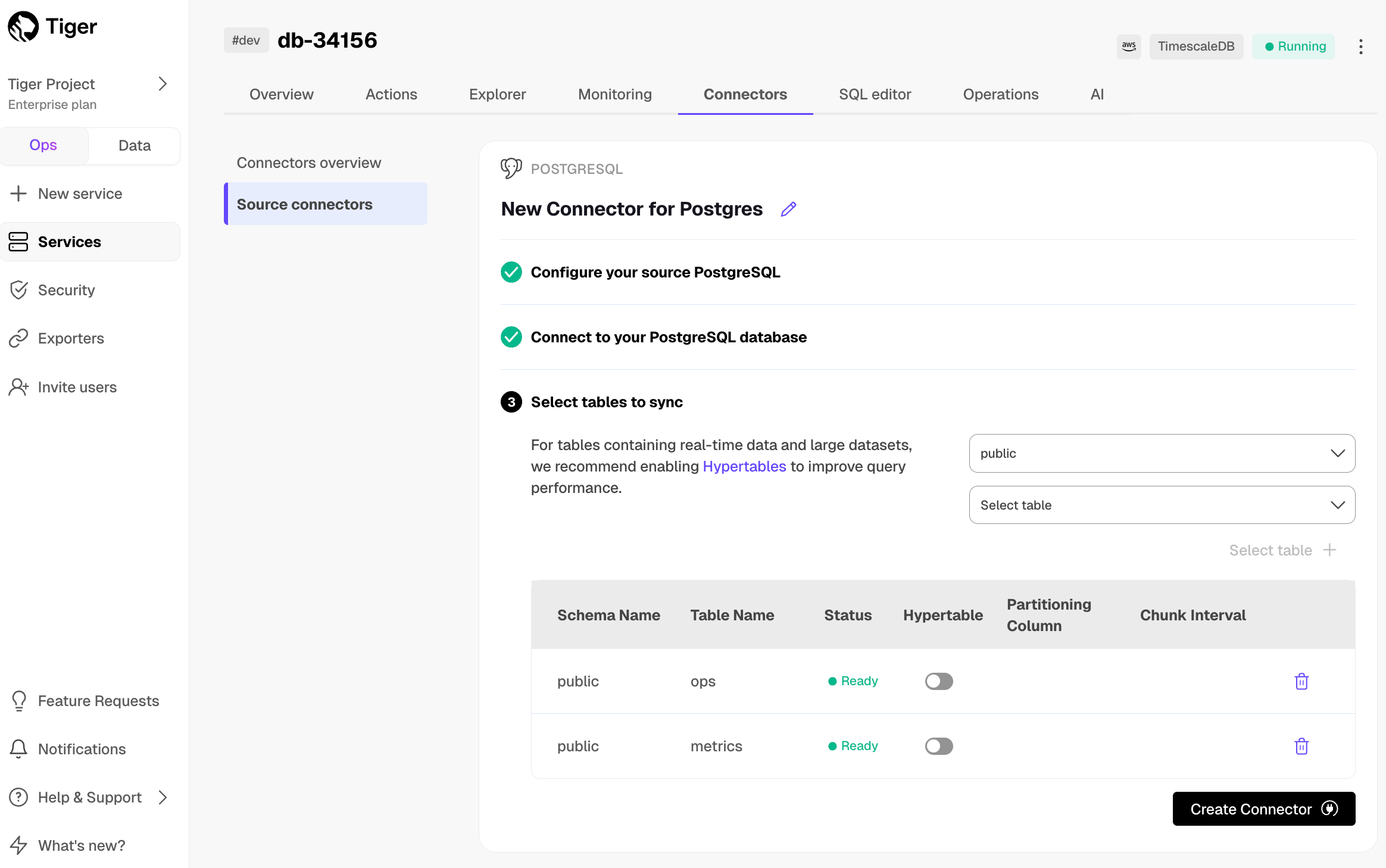
Select tabledropdown, select the tables to sync. -
Click
Select tables +. The console checks the table schema and, if possible, suggests the column to use as the time dimension in a . -
Click
Create Connector. The console starts the connector between the source database and the target and displays the progress.
-
In the
-
Monitor synchronization
-
To view the amount of data replicated, click
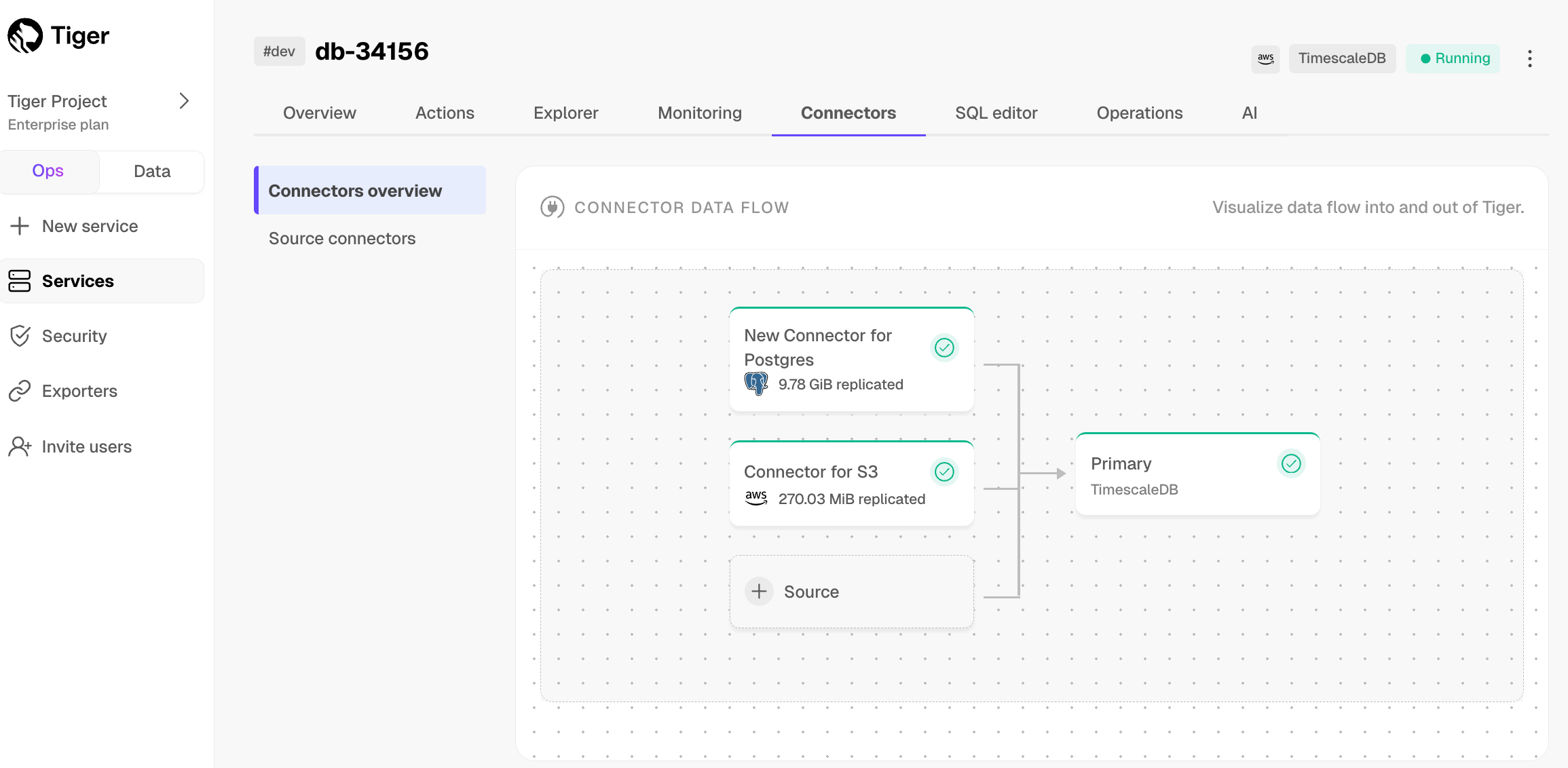
Connectors. The diagram inConnector data flowgives you an overview of the connectors you have created, their status, and how much data has been replicated. -
To review the syncing progress for each table, click
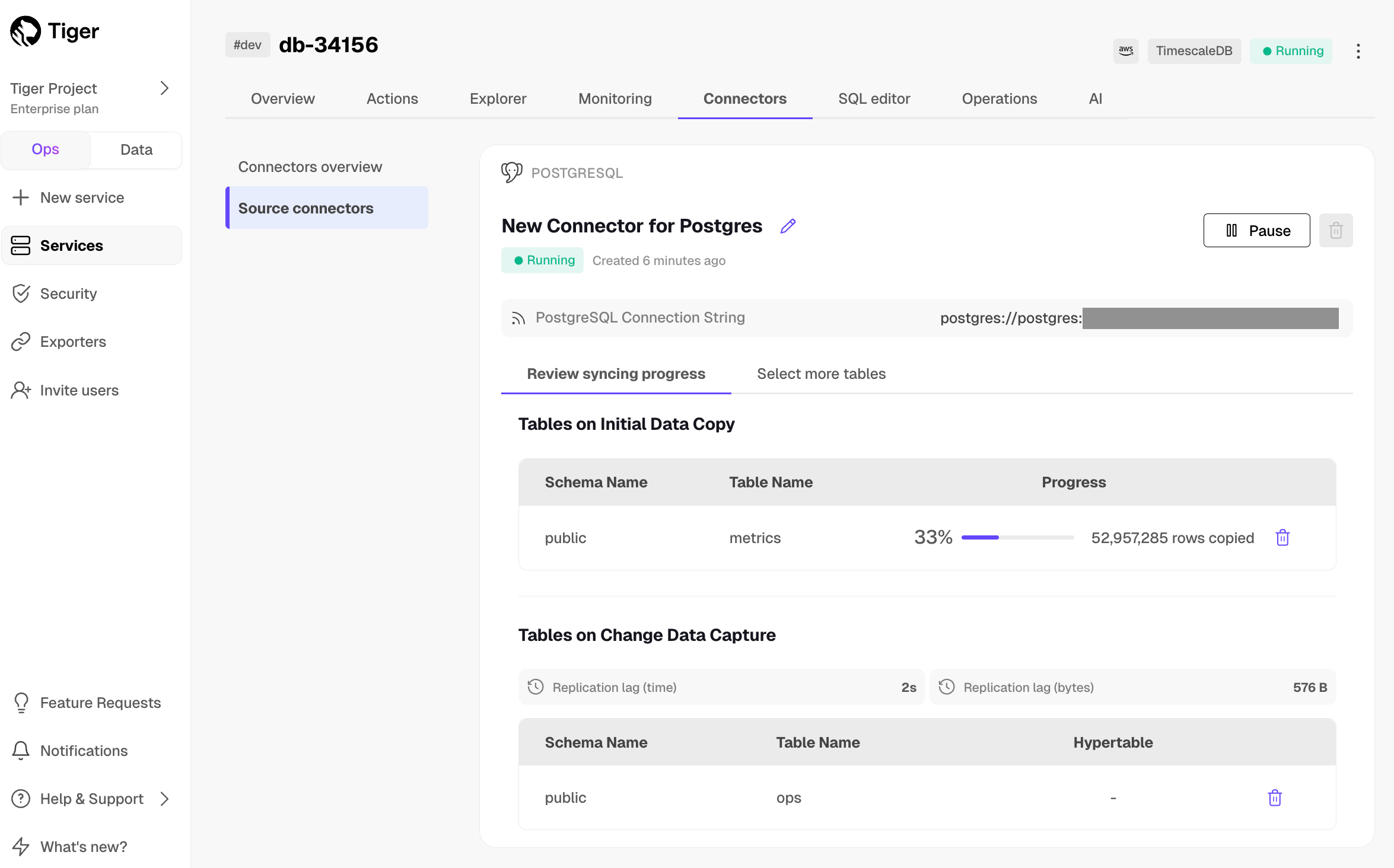
Connectors>Source connectors, then select the name of your connector in the table.
-
To view the amount of data replicated, click
-
Manage the connector
-
To edit the connector, click
Connectors>Source connectors, then select the name of your connector in the table. You can rename the connector, delete or add new tables for syncing. -
To pause a connector, click
Connectors>Source connectors, then open the three-dot menu on the right and selectPause. -
To delete a connector, click
Connectors>Source connectors, then open the three-dot menu on the right and selectDelete. You must pause the connector before deleting it.
-
To edit the connector, click