

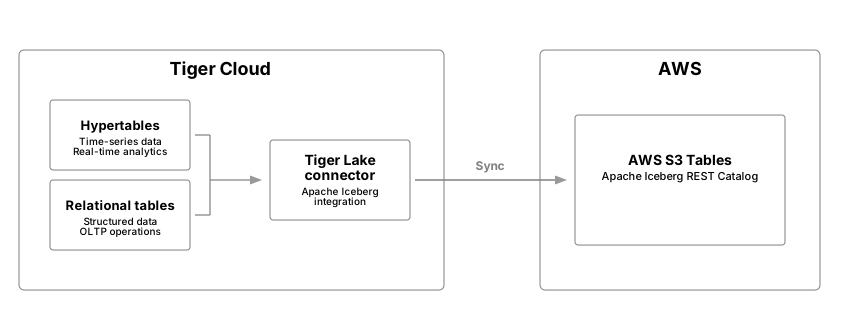
 is a native integration enabling synchronization between s and relational tables
running in s to Iceberg tables running in Amazon S3 Tables in your AWS account.
is a native integration enabling synchronization between s and relational tables
running in s to Iceberg tables running in Amazon S3 Tables in your AWS account.
Tiger Lake is currently in private beta. Please contact us to request access.
Prerequisites
To follow the steps on this page:- Create a target with the Real-time analytics capability enabled. You need your connection details.
This feature is currently not supported for on Microsoft Azure.
Integrate a data lake with your
To connect a to your data lake:- AWS Management Console
- AWS CloudFormation CLI
- Manual configuration
-
Set the AWS region to host your table bucket
- In AWS CloudFormation, select the current AWS region at the top-right of the page.
- Set it to the Region you want to create your table bucket in.
-
Create your CloudFormation stack
-
Click
Create stack, then selectWith new resources (standard). -
In
Amazon S3 URL, paste the following URL, then clickNext. -
In
Specify stack details, enter the following details, then clickNext:Stack Name: a name for this CloudFormation stackBucketName: a name for this S3 table bucketProjectIDandServiceID: enter the connection details for your
-
In
Configure stack optionscheckI acknowledge that AWS CloudFormation might create IAM resources, then clickNext. -
In
Review and create, clickSubmit, then wait for the deployment to complete. AWS deploys your stack and creates the S3 table bucket and IAM role. -
Click
Outputs, then copy all four outputs.
-
Click
-
Connect your to the data lake
-
In , select the you want to integrate with AWS S3 Tables, then click
Connectors. -
Select the Apache Iceberg connector and supply the:
- ARN of the S3Table bucket
- ARN of a role with permissions to write to the table bucket
-
In , select the you want to integrate with AWS S3 Tables, then click
Stream data from your to your data lake
When you start streaming, all data in the table is synchronized to Iceberg. Records are imported in time order, from oldest to youngest. The write throughput is approximately 40.000 records / second. For larger tables, a full import can take some time. For Iceberg to perform update or delete statements, your or relational table must have a primary key. This includes composite primary keys. To stream data from a relational table, or a in your to your data lake, run the following statement:tigerlake.iceberg_sync:boolean, set totrueto start streaming, orfalseto stop the stream. A stream cannot resume after being stopped.tigerlake.iceberg_partitionby: optional property to define a partition specification in Iceberg. By default the Iceberg table is partitioned asday(<time-column of {HYPERTABLE}>). This default behavior is only applicable to s. For more information, see partitioning.tigerlake.iceberg_namespace: optional property to set a namespace, the default istimescaledb.tigerlake.iceberg_table: optional property to specify a different table name. If no name is specified the table name is used.
Partitioning intervals
By default, the partition interval for an Iceberg table is one day(time-column) for a . table sync does not enable any partitioning in Iceberg for non-hypertables. You can set it using tigerlake.iceberg_partitionby. The following partition intervals and specifications are supported:| Interval | Description | Source types |
|---|---|---|
hour | Extract a date or timestamp day, as days from epoch. Epoch is 1970-01-01. | date, timestamp, timestamptz |
day | Extract a date or timestamp day, as days from epoch. | date, timestamp, timestamptz |
month | Extract a date or timestamp day, as days from epoch. | date, timestamp, timestamptz |
year | Extract a date or timestamp day, as days from epoch. | date, timestamp, timestamptz |
truncate[W] | Value truncated to width W, see options |
Sample code
The following samples show you how to tune data sync from a or a relational table to your data lake:-
Sync a with the default one-day partitioning interval on the
ts_columncolumn To start syncing data from a to your data lake using the default one-day chunk interval as the partitioning scheme to the Iceberg table, run the following statement:This is equivalent today(ts_column). -
Specify a custom partitioning scheme for a
You use the
tigerlake.iceberg_partitionbyproperty to specify a different partitioning scheme for the Iceberg table at sync start. For example, to enforce an hourly partition scheme from the chunks onts_columnon a , run the following statement: -
Set the partition to sync relational tables
relational tables do not forward a partitioning scheme to Iceberg, you must specify the partitioning scheme using
tigerlake.iceberg_partitionbywhen you start the sync. For example, for a standard table to sync to the Iceberg table with daily partitioning , run the following statement: -
Stop sync to an Iceberg table for a or a relational table
-
Update or add the partitioning scheme of an Iceberg table
To change the partitioning scheme of an Iceberg table, you specify the desired partitioning scheme using the
tigerlake.iceberg_partitionbyproperty. For example. if thesamplestable has an hourly (hour(ts)) partition on thetstimestamp column, to change to daily partitioning, call the following statement:This statement is also correct for Iceberg tables without a partitioning scheme. When you change the partition, you do not have to pause the sync to Iceberg. Apache Iceberg handles the partitioning operation in function of the internal implementation. -
Specify a different namespace
By default, tables are created in the the
timescaledbnamespace. To specify a different namespace when you start the sync, use thetigerlake.iceberg_namespaceproperty. For example: -
Specify a different Iceberg table name
The table name in Iceberg is the same as the source table in .
Some services do not allow mixed case, or have other constraints for table names.
To define a different table name for the Iceberg table at sync start, use the
tigerlake.iceberg_tableproperty. For example:
Limitations
- Service requires 17.6 and above is supported.
- Consistent ingestion rates of over 30000 records / second can lead to a lost replication slot. Burst can be feathered out over time.
- Amazon S3 Tables Iceberg REST catalog only is supported.
- In order to collect deletes made to data in the columstore, certain columnstore optimizations are disabled for s.
- Direct Compress is not supported.
- The
TRUNCATEstatement is not supported, and does not truncate data in the corresponding Iceberg table. - Data in a that has been moved to the low-cost object storage tier is not synced.
- Writing to the same S3 table bucket from multiple services is not supported, bucket-to-service mapping is one-to-one.
- Iceberg snapshots are pruned automatically if the amount exceeds 2500.